Changing the Account Email Address (Admin Email)
If you need to change the primary email associated with your Seekhly account, follow these steps:
Step 1: Add a New Admin Email
1. Log in to your Seekhly Dashboard.
2. Navigate to Users from the menu.
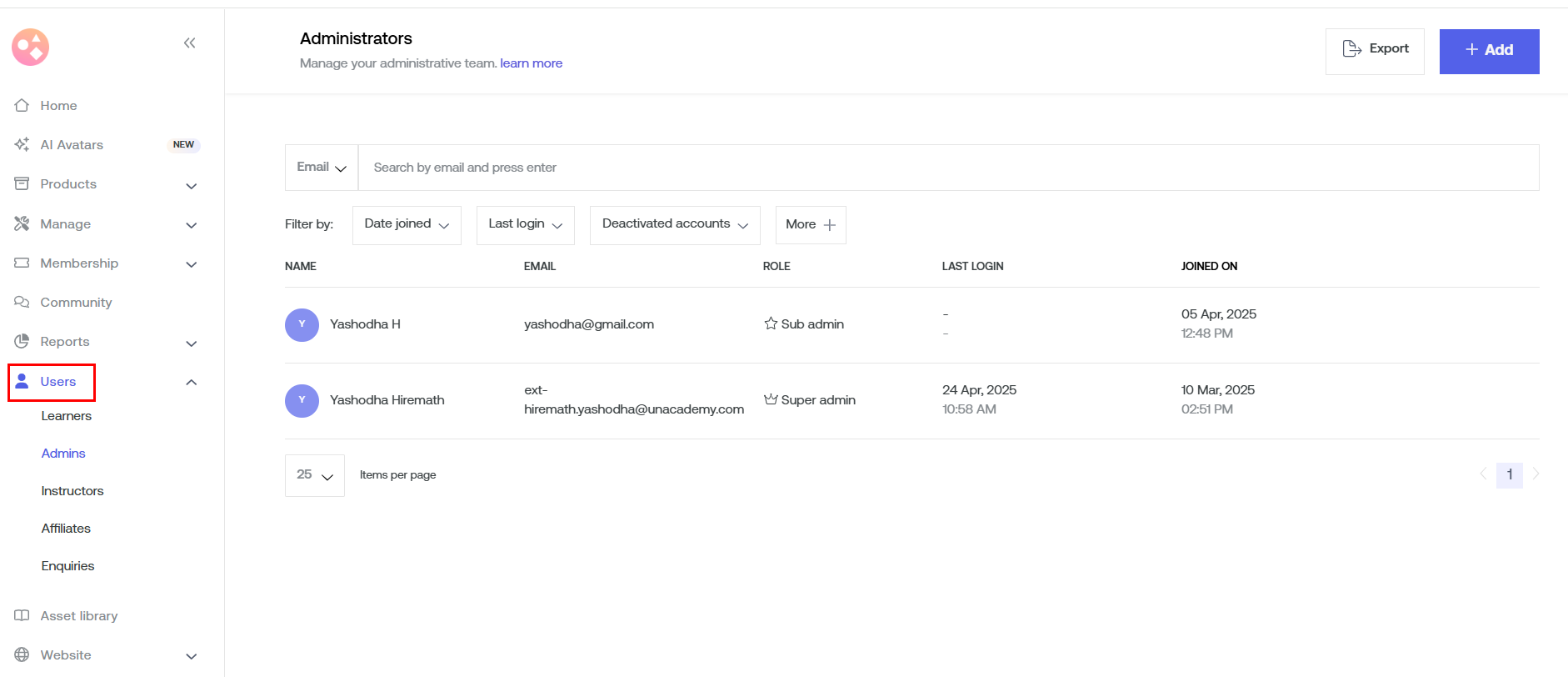
3. Click on Admins.
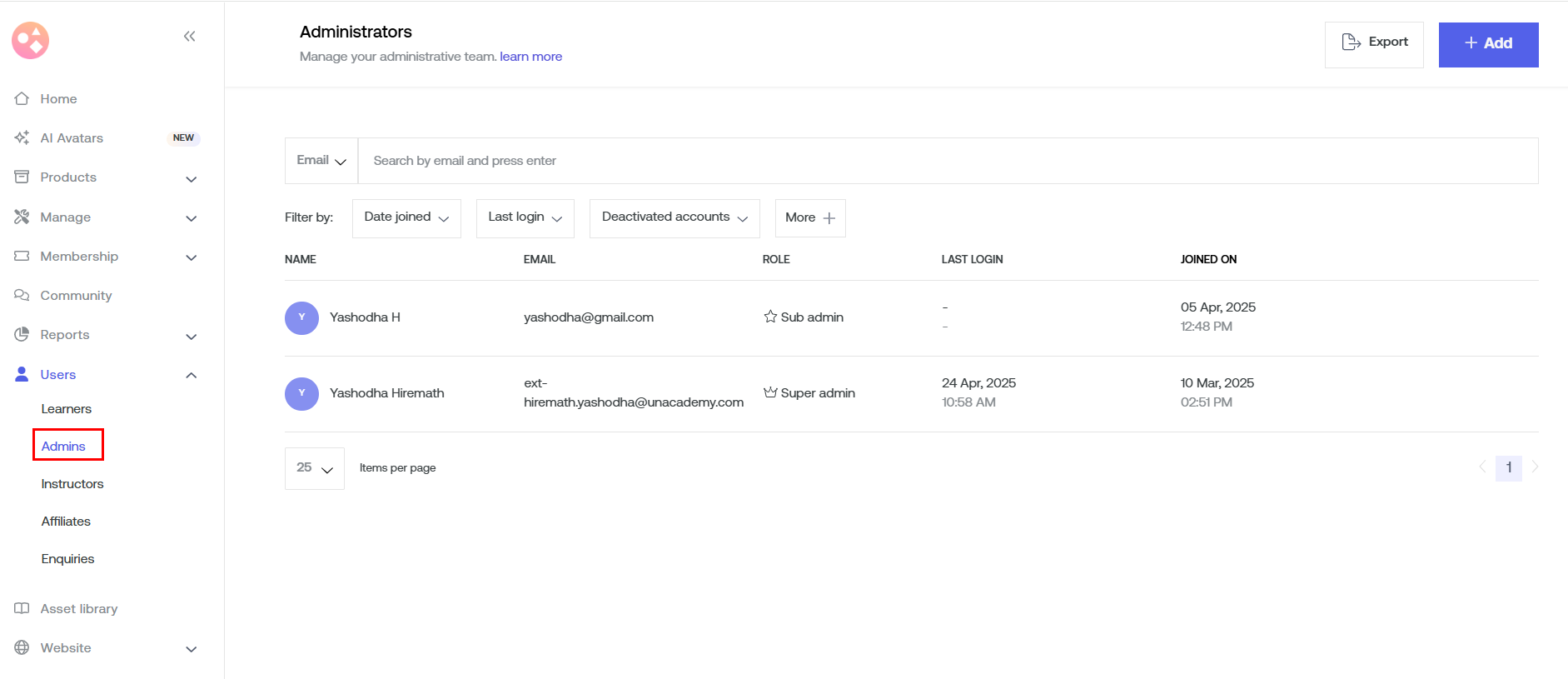
4. Click the Add button (in the top right corner) to create a new admin user.
5. Enter the details with the new email ID and assign admin access.
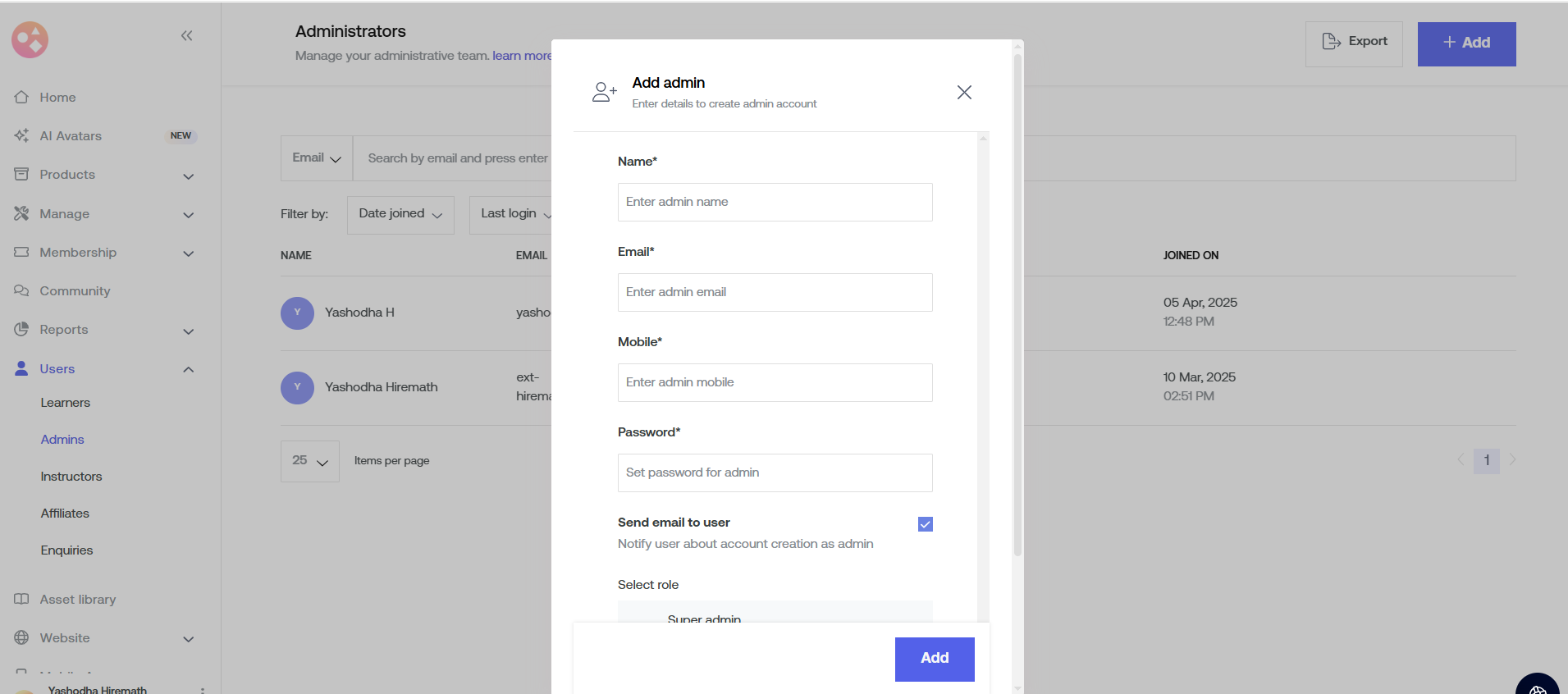
Step 2: Switch to the New Admin Email
- You can log out of your current admin account.
- Log back in using the newly added admin email ID.
Step 3: Remove the Old Admin Email
1. Go to Dashboard > Users > Admins.
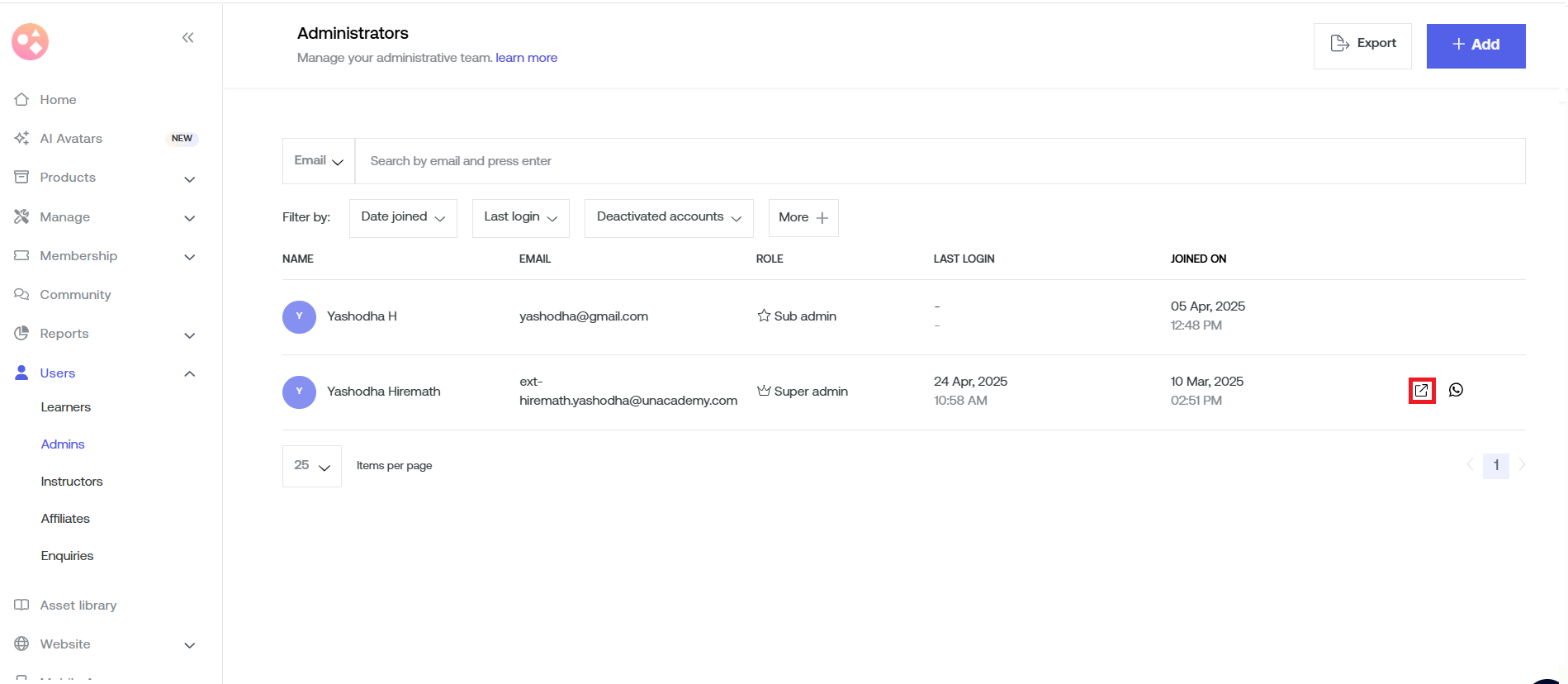
2. Locate the old admin email. CLick on the user details.
3. Change its role from Admin to Student.
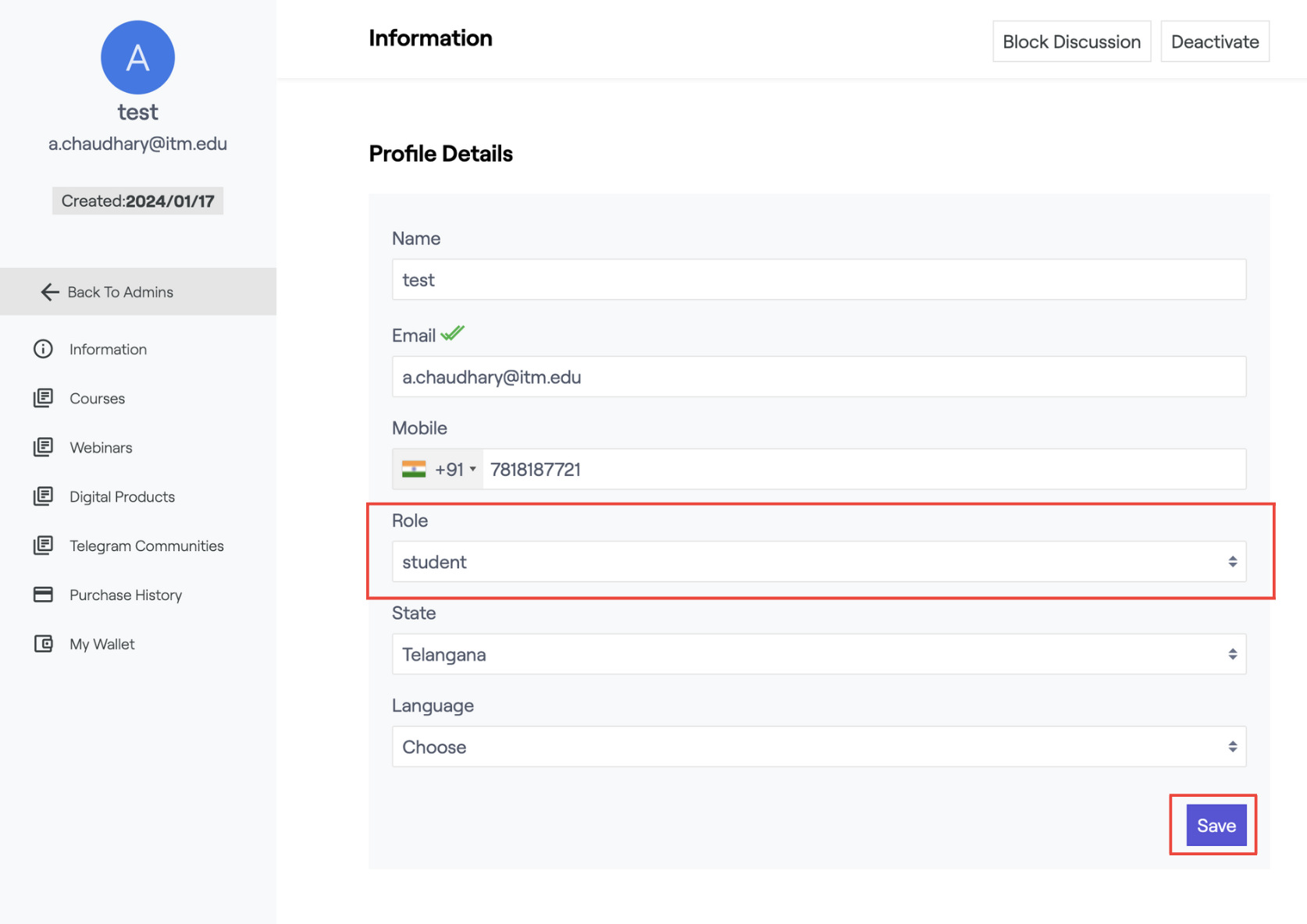
4. Save the changes.
By following these steps, your new email will now be the primary admin email for your Seekhly account.
Changing the Communication Email ID
The communication email is where you receive system notifications and important updates from Seekhly. You can update this separately from your admin email by following these steps:
- Log in to your Seekhly Dashboard.
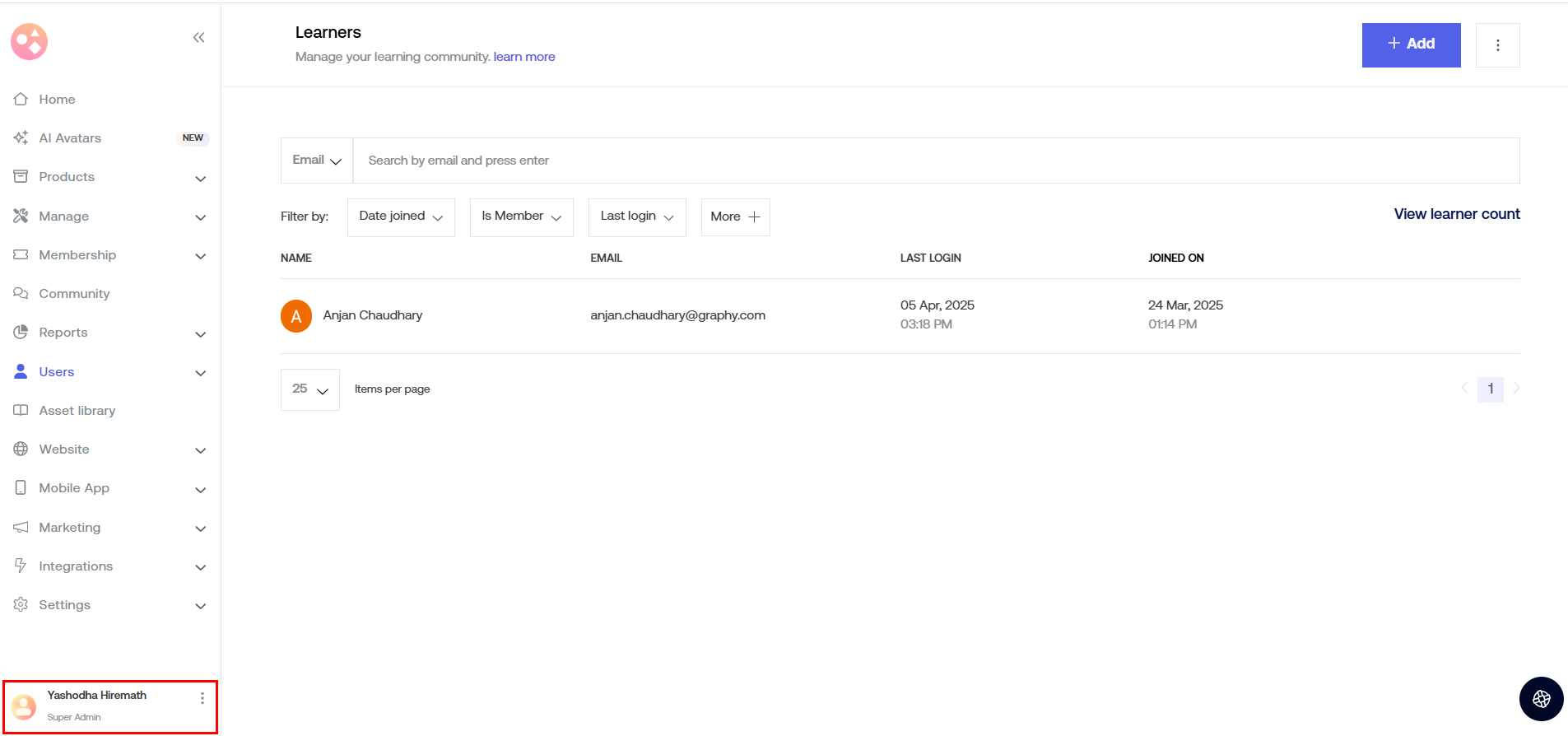
- Click on the Profile icon ( bottom left corner).
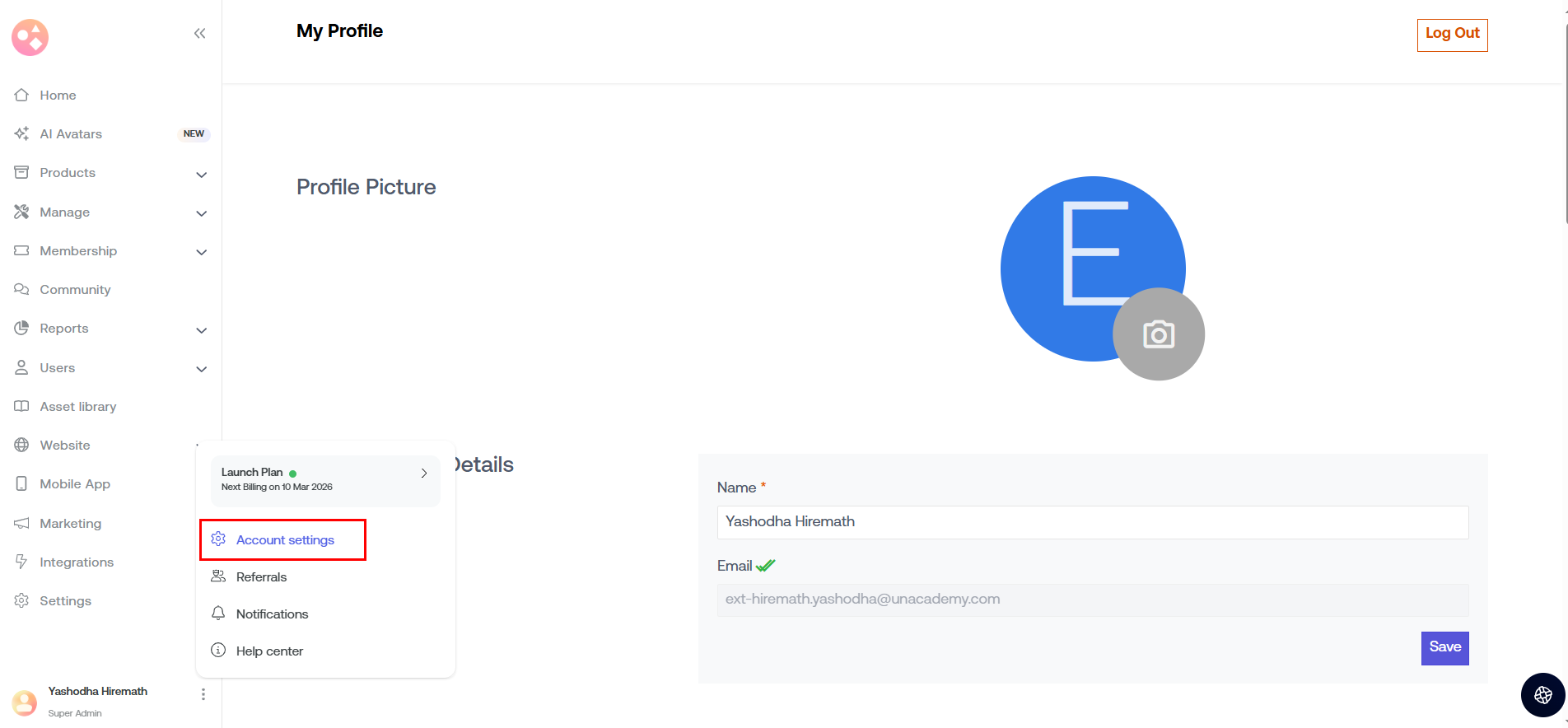
- Navigate to Account Settings.
- Locate the Communication Email section.
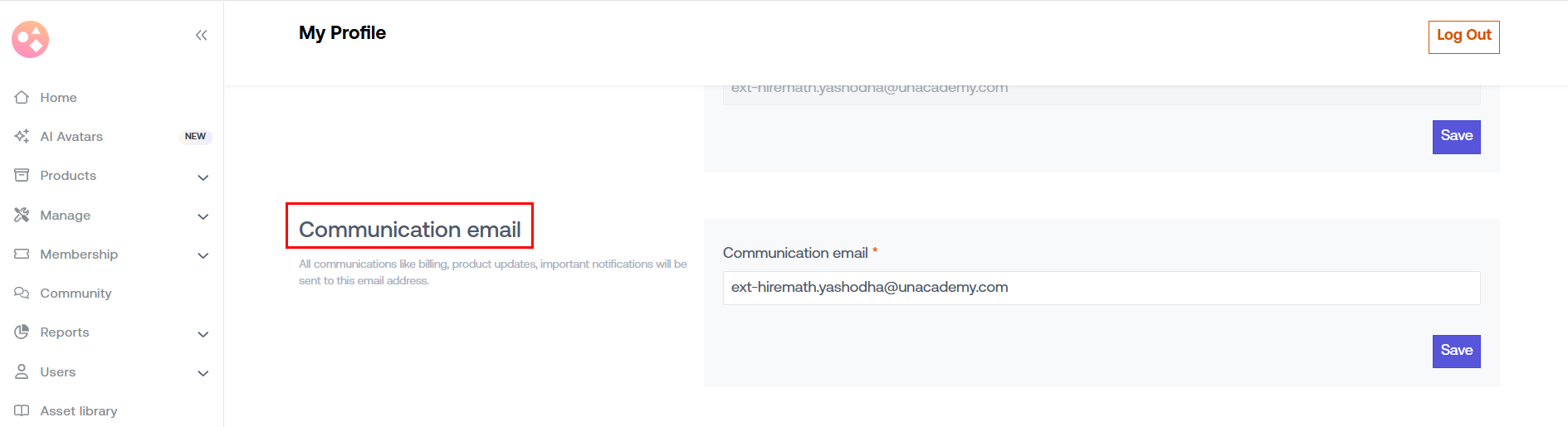
- Enter the new email ID you want to use for communication.
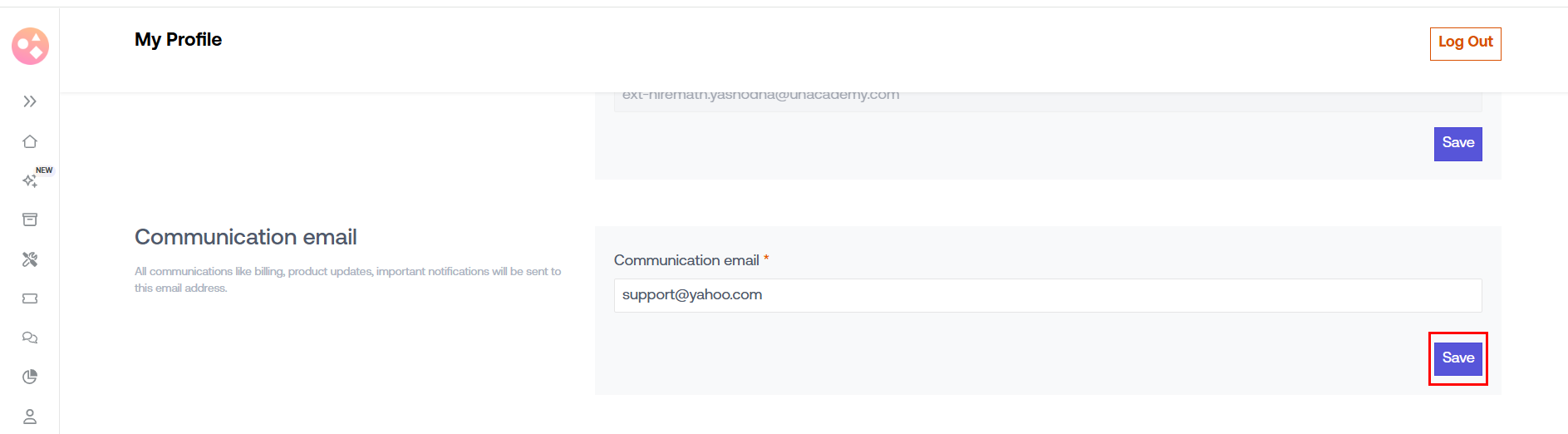
6. Click Save to apply the changes.
If you face any issues while updating your email or need further assistance, feel free to reach out to our support team at care@seekhly.com. We're happy to help!?
Was this article helpful?
That’s Great!
Thank you for your feedback
Sorry! We couldn't be helpful
Thank you for your feedback
Feedback sent
We appreciate your effort and will try to fix the article
